What Happens After I Submit an Order?
After your order is submitted, it is then reviewed by your affiliated team dealer, who can either approve your design or return for updates. Once your order is approved by your dealer, your order goes to the Team Account Specialist team at adiCustom who can either approve your design or return for edits.
Once adiCustom approves your order, it is sent to production. Once this happens, you will receive a confirmation email. At this point, no further changes can be made.
What is the Order Approval Process?
When an account or registered user from an Organization submits an order, an email is sent to the assigned Account Rep (dealer) containing a link to directly access the order placed. The link takes you to a page, with 6 different tabs, similar to the one shown below.
SUMMARY TAB
In the Summary tab you see:
- ACCOUNT: Please check for accuracy.
- SHIPPING ADDRESS: Please check for accuracy and make any necessary changes.
- ORDER INFO: Check for accuracy and add PO number or Event ID if applicable.
- DESIGN: Here you see the style name of your order’s design
- QUANTITIES: Total number of items in your order
- ESTIMATE: Grand Total is viewed here. You can toggle on the top right of your screen between MSRP and Wholesale.
STYLE TAB
In the Style View tab you see:
- A 360 view of your design
- Style numbers for your choices
COLOR UP TAB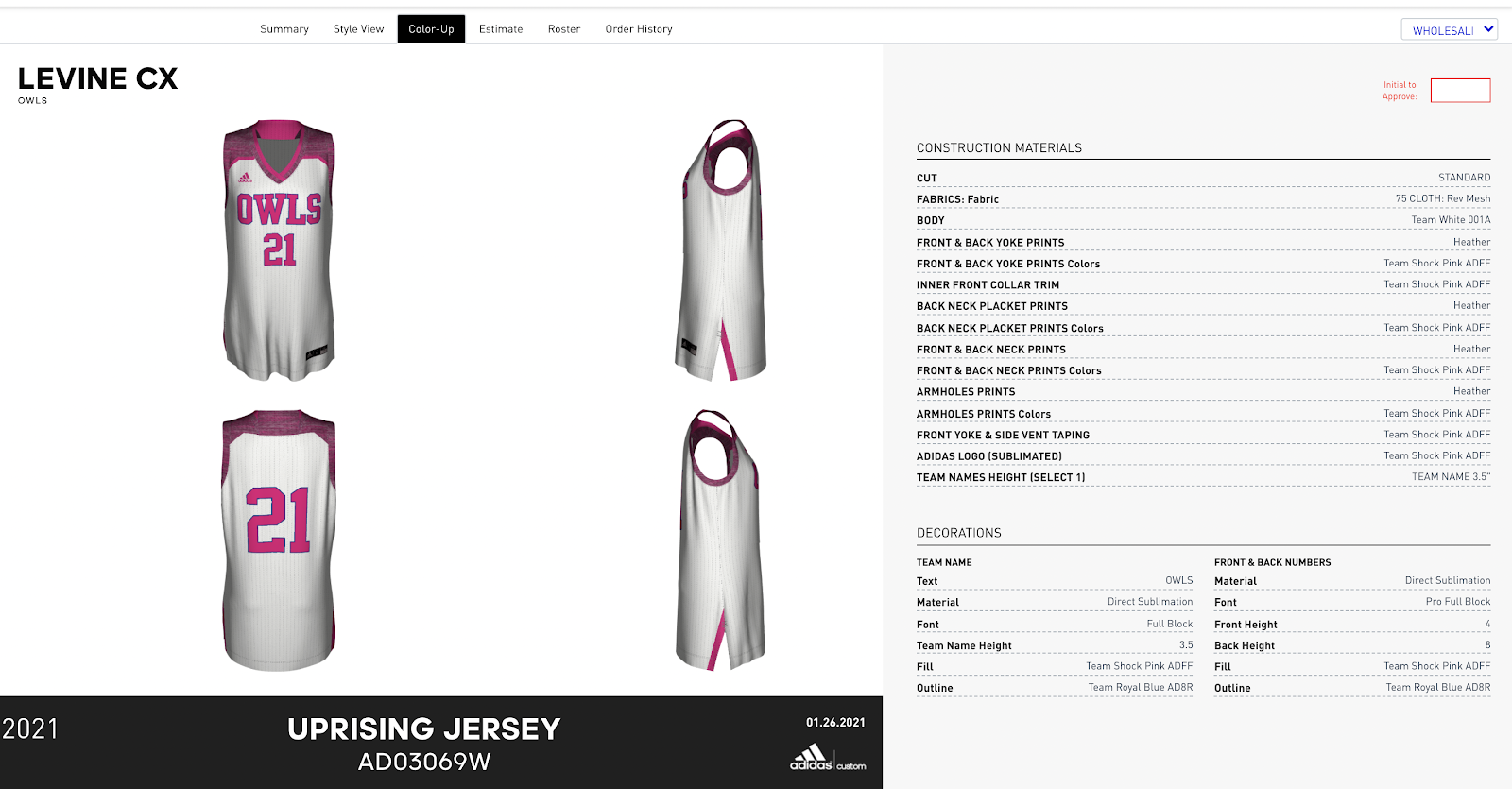
In the Color-Up tab you see:
- Mock-ups of your uniform design at various angles
- Order name and style number
- The specific construction materials of your design
- The decorations of your design including team name and number details
To approve, enter your initials in the box on the top right of the page:
ESTIMATE TAB
In the Estimate tab you see:
- UNIT PRICES: The cost breakdown of your custom design, itemizing each addition or enhancement made to the basic style, including:
-
- Team Name
- Numbers
- Player Names
- Logos
- Additional lengths
- Order summary: Calculates the total price for each style ordered.
- Grand Total: This is your grand total before taxes and shipping.
To approve, enter your initials in the box on the top right of the page:
ROSTER TAB
In the Roster tab you see:
- Each player’s number, size, and quantity per row.
- The total number of items for that roster and order.
To approve, enter your initials in the box on the top right of the page:
ORDER HISTORY TAB
The Order History tab will show you a consolidated list of all your orders and their statuses.
APPROVE
Once you have entered your initials in all 3 places you will need to go back to the Summary tab to complete the approval process.
Click on where it says “Check here…” to confirm that you have reviewed the order and click on APPROVE to submit to adiCustom.
Power Play: Not ready to approve? PDF’s are available for download on the bottom left panel, just below the CANCEL button.
Comments
0 comments
Article is closed for comments.