How do I Build a Quick Count Roster? What is the Quick Count Tool?
The Quick Count tool helps users easily generate their uniform rosters including personalization such as sizes, numbers, names, and more.
Quick Count rosters only become activated once the user elects to add Player Numbers to their design. Once you begin your roster-building process, you will be brought to the QUICK COUNT roster section.
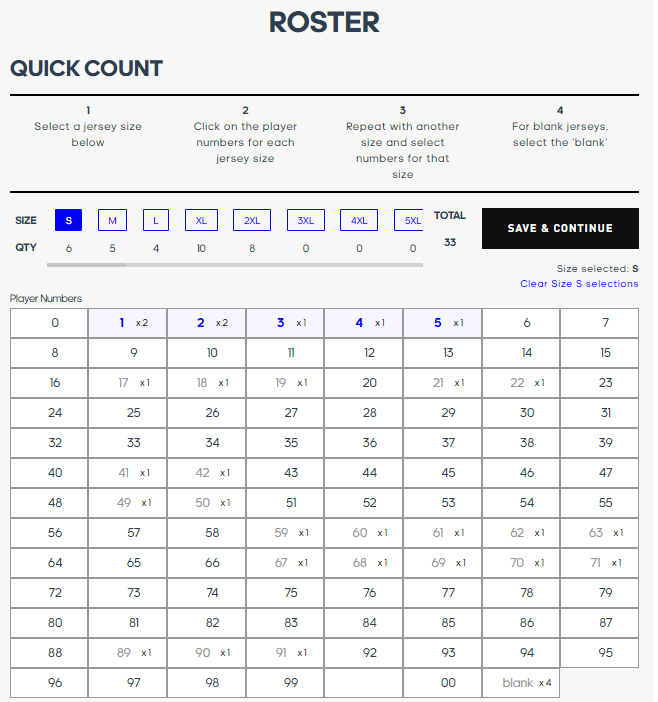
To use the Quick Count function:
- Select jersey size
- Click on the player numbers to be made in each jersey size.
- For blank jerseys, select the “Blank” option for each size desired.
- Multiple copies of a given jersey number can be added by clicking on the +/- buttons to the left of each number.
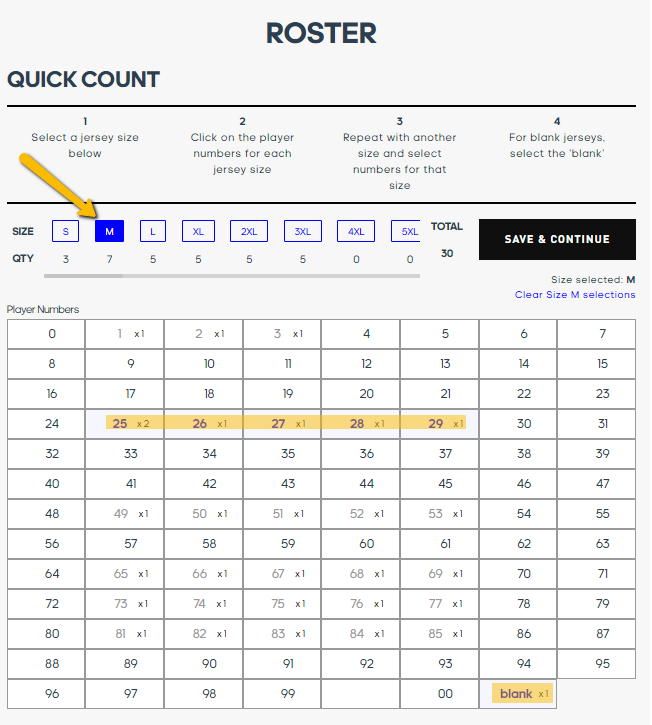
- Click “Save and Continue” to bring you to the traditional roster grid to continue the personalization of the roster. Any further adjustments can still be made at this point such as changes to player numbers, sizes, sleeve style, etc. And of course, at this point is when each player’s name is assigned to a jersey.
- Lastly, additional rows can be added as needed, or delete players from rosters if necessary.

When complete, click “Finish Roster + Save” on the top right corner. You will be brought to your Locker, where your submissions, designs, rosters, and Order History will be saved.
Comments
0 comments
Article is closed for comments.